




Maitiro Ekugadzirisa "Kumirira Imwe iPhone" Yakamira?

Apple’s Quick Start makes switching to a new iPhone much easier. By placing your old and new iPhones close together, you can transfer apps, photos, contacts, settings, and other data without setting everything up manually. However, the transfer process may occasionally stop at the “Waiting for Other iPhone” screen and refuse to continue.
In this guide, we’ll explain why Waiting for Other iPhone gets stuck, show you the most useful fixes, and introduce an advanced tool for dealing with persistent iOS system errors.
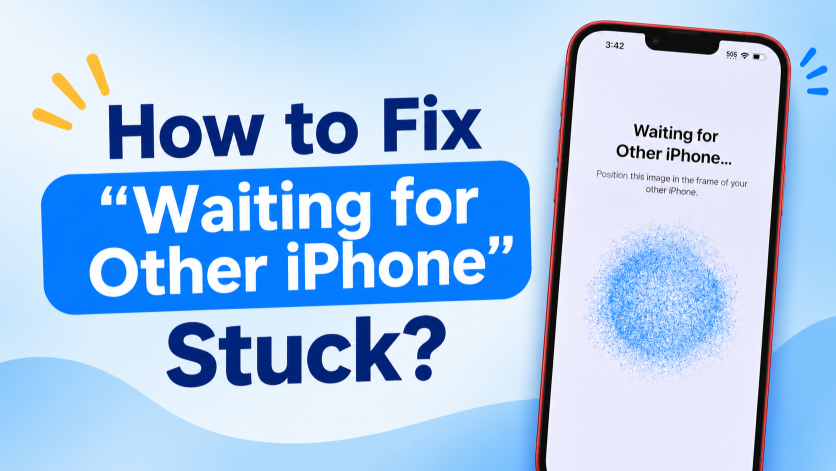
1. Why Does “Waiting for Other iPhone” Get Stuck?
There isn’t one single cause behind this issue. Here are some of the most common reasons:
- Unstable Wi-Fi: A weak or interrupted Wi-Fi connection can stop the two iPhones from communicating properly.
- Bluetooth problems: Quick Start uses Bluetooth to detect nearby Apple devices, so Bluetooth issues can prevent setup from continuing.
- Devices are too far apart: Moving the iPhones away from each other during setup can interrupt their connection.
- Temporary iOS glitches: Minor software bugs or frozen system processes can cause the transfer screen to become stuck.
- Outdated iOS: An older iOS version may create compatibility or transfer problems between the two devices.
- Bhatiri rakaderera: If either iPhone has insufficient power, setup and data migration may be interrupted.
- Large amounts of data: Transferring a large photo library, many apps, or other files can make the preparation stage take considerably longer.
- Network configuration errors: Incorrect or corrupted network settings can interfere with the connection needed for Quick Start.
2. Steps on How to Fix “Waiting for Other iPhone” Stuck
Try the following solutions one at a time. After each fix, check whether the two iPhones can establish a connection and continue the setup.
1) Wait a Little Longer
The “Waiting for Other iPhone” screen doesn’t always mean the device has frozen. If you have a lot of data, the iPhones may need extra time to prepare the transfer. Keep both phones close together and wait several more minutes before trying other solutions.
2) Keep the Two iPhones Close
Place your old and new iPhones next to each other throughout the setup. Avoid carrying either device to another room or increasing the distance between them. Keeping them close helps maintain a stable Quick Start connection.
3) Check Wi-Fi and Bluetooth
Make sure Wi-Fi and Bluetooth are enabled on both iPhones. If they are already turned on, toggle them off and back on to refresh the connections. Also ensure that you are using a stable Wi-Fi network rather than a weak or unreliable connection.
4) Charge Both iPhones
Connect both iPhones to their chargers before attempting the transfer again. This prevents low battery levels or unexpected shutdowns from interrupting the setup process.
5) Restart Both Devices
Restarting is one of the easiest ways to clear temporary software glitches. Turn off both iPhones, power them back on, place them close together, and restart the Quick Start process.
6) Update iOS
An outdated system can sometimes cause compatibility issues during iPhone migration. On the old iPhone, open Settings> General> Software Update and install an available update. Update the new iPhone as well if you can access its settings, then retry the transfer.
7) Reset Network Settings
If the wireless connection keeps failing, resetting network settings may help. Go to Settings> General> Transfer kana Reset iPhone> Reset> Reset Network Settings .
This action does not delete personal files, but it removes saved Wi-Fi networks and passwords, so you’ll need to reconnect afterward.
8) Start the New iPhone Setup Again
If the new iPhone is stuck during initial setup and contains no important data, you can erase it and start over. Go to Settings > General > Transfer or Reset iPhone > Erase All Content and Settings , then begin Quick Start again.
Remember that this option deletes data currently stored on the device, so use it only when appropriate.
9) Restore from a Backup Instead
If direct iPhone-to-iPhone migration repeatedly fails, consider using another transfer method.
You can set up your new iPhone by restoring your data from an iCloud backup or a backup saved on your Mac or Windows PC.
This lets you bypass a problem specific to the Quick Start transfer.
3. Bonus: One-Click Fix iPhone System Errors with AimerLab FixMate
If you’ve tried the usual troubleshooting methods but your iPhone still gets stuck on “Waiting for Other iPhone,” the issue may be related to the iOS system itself. In that case, AimerLab FixMate provides a simpler way to repair common iPhone system problems.
AimerLab FixMate is an iOS system repair tool designed to resolve various software-related problems on iPhone and iPad. Instead of manually troubleshooting individual system components, you can connect your device to a computer and use FixMate’s guided repair process.
Steps using FixMate:
- Download and install AimerLab FixMate on your computer, then launch it.
- Connect the affected iPhone to the computer using a USB cable and wait for FixMate to detect it.
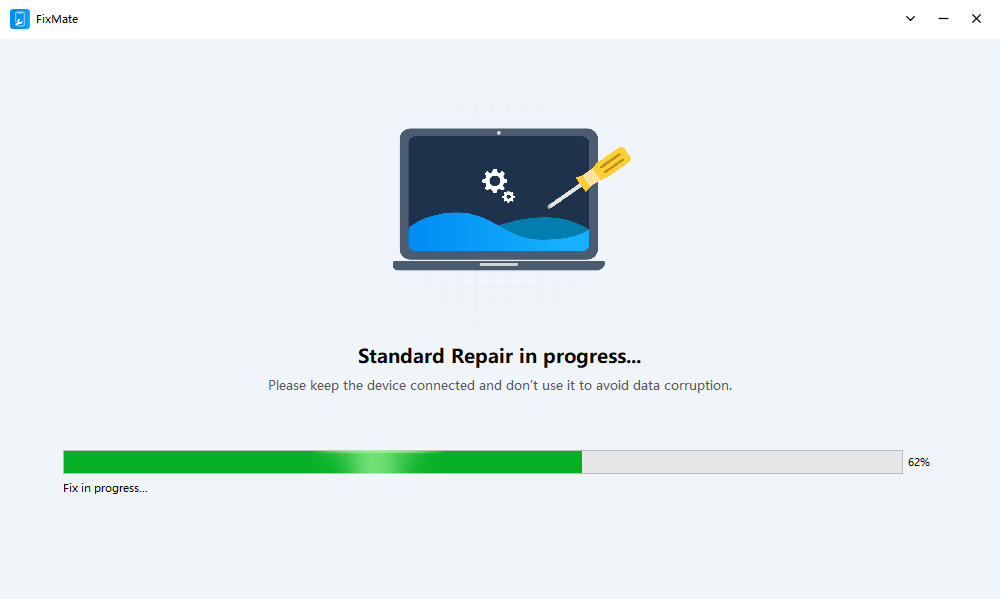
- Select the appropriate repair mode to fix the iOS system issue, then choose and download the firmware package provided for your iPhone model.
- Click the repair button and let FixMate fix the iOS issue; Once finished, restart your iPhone and try the transfer again.
4. Mhedziso
When Waiting for Other iPhone is stuck, start with simple solutions such as waiting a little longer, keeping both phones close, checking Wi-Fi and Bluetooth, charging the devices, and restarting them. Updating iOS, resetting network settings, or switching to a backup-based transfer can also help when Quick Start refuses to proceed.
If these methods don’t solve the issue and the iPhone appears to have a deeper software problem, AimerLab FixMate is a convenient option to consider. With its guided iOS repair process, FixMate can help address system errors without requiring complicated manual troubleshooting. For users who want an easier way to repair persistent iPhone software issues and get their device ready for data transfer again, AimerLab FixMate is well worth trying.
- Maitiro Ekugadzirisa iOS 26 Isingatore Nguva Yese Kudhawunirodha?
- Maitiro Ekuona Nzvimbo Dzinowanzoonekwa pa iPhone?
- Sei iOS 26 Yanonoka Kushanda?
- Maitiro ekugadzirisa "Paiva neChikanganiso Chekusimbisa Passcode ye iPhone Yako"?
- Maitiro Ekugadzirisa "Kupedzisa pa iPhone Itsva" Yakamira?
- Maitiro ekudhawunirodha iOS 27 Beta pa iPhone?
- Maitiro eSpoof Pokemon Enda pa iPhone?
- Mhedziso yeAimerlab MobiGo GPS Nzvimbo Spoofer
- Maitiro ekuchinja Nzvimbo pa iPhone yako?
- Pamusoro 5 Fake GPS Nzvimbo Spoofers yeIOS
- GPS Nzvimbo Finder Tsanangudzo uye Spoofer Suggestion
- Maitiro Ekuchinja Nzvimbo Yako PaSnapchat
- Maitiro ekutsvaga / kugovera / kuviga Nzvimbo pane iOS zvishandiso?